

Table of Contents
- Can Oracle Forms 6i Run with Oracle 19c?
- What Is Oracle Forms 6i?
- Oracle Forms 6i Compatibility Errors
- Modernization Options
- Temporary Workaround Using Forms 10g
- Frequently Asked Questions
- Conclusion
Can Oracle Forms 6i Run with Oracle Database 19c?
Oracle Forms 6i is not certified or supported for use with Oracle Database 19c. Its legacy client-server runtime relies on outdated Oracle client libraries and networking protocols that can cause compatibility errors with modern database releases.
However, this does not necessarily mean that every application developed using Forms 6i must be completely rewritten.
One possible short-term approach is to migrate the existing Forms modules to an Oracle Forms 10g web runtime, recompile them, and connect the migrated application to Oracle Database 19c.
Compatibility comparison table
| Approach | Oracle 19c Compatibility |
| Original Forms 6i runtime | compatibility fails |
| Forms 10g web runtime | Unsupported, short term workaround |
| Forms 14c | Modernization path |
| Oracle APEX | Web-native replacement |
| Java or another web framework | Requires redevelopment |
In this article, I explain the compatibility problems, discuss long-term modernization options, and demonstrate a practical legacy migration approach that may reduce application code changes.
Important: The Forms 10g workaround is not a supported or certified Oracle Forms 10g–Database 19c configuration. It should be treated as a temporary, high-risk legacy solution rather than a recommended production architecture.
With Oracle Database 19c, you can no longer run Oracle Forms 6i applications. Although these two products originate from different eras, you may still encounter Oracle Forms 6i. This is because Forms 6i was a powerful and effective development platform in its time, with a strong user base and widespread adoption.
What is Oracle Forms 6i?
Oracle’s answer to Visual Basic 6.
Oracle Forms 6i is a 32-bit legacy development environment that represents the peak of the traditional client-server architecture for building complex, data-heavy interfaces for Oracle Databases.. It was the final version to bridge the gap between traditional client-server setups and web-based deployment, it utilized a robust PL/SQL framework to handle high-volume transactions. While it is now a legacy technology superseded by modern versions, it remains a gold standard for its era( 2000 – 2010) in terms of stability and deep database integration. Unlike modern web-based iterations, it relies on a local installation that requires a direct, persistent connection to the database, often necessitating specific, aging Oracle client libraries (such as Net8) to function. Because of its 32-bit nature and specific networking stack, it is primarily certified for use with older database versions like Oracle 8i and 9i, making it increasingly difficult to bridge with modern 64-bit operating systems.
Many applications built with Forms 6i were so stable that they required little or no modification for years, reducing the urgency to modernize or migrate to web-based architectures from the traditional client-server model.
According to Michael Ferrante, a former Oracle Forms product manager with over 25 years of experience, Forms and Reports 6 were never certified for use with any database version newer than Oracle 8.1.6. In particular, regarding Oracle XE 11g, it is important to note that Forms 6i was never officially supported or certified beyond that early database era.
The last database version where Oracle Forms 6i could still work in practice was Oracle Database 12.1.0.2, although this was never an officially certified or supported combination.
However, despite its success in the early 2000s, Oracle Forms 6i is no longer certified or supported with modern database versions such as Oracle Database 19c. After an upgrade to 19c, organizations may encounter application failures due to compatibility and unsupported runtime components.
Why the Original Forms 6i Runtime Is Incompatible with Oracle 19c?
ORA-03115 unsupported network datatype or representation error
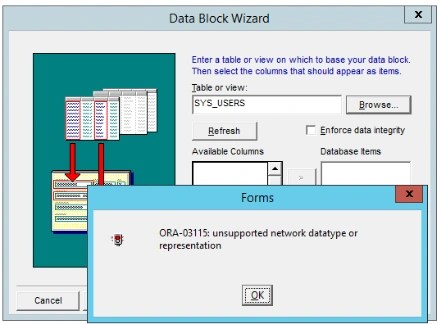
ORA-03137: malformed TTC packet from client rejected: [kpoal8Check-5] [0]
This issue is caused by the client version not being compatible with the RDBMS server version. Unlike previous versions, Oracle has added some strict checks starting 12.2.0.1 and client applications must comply with these checks.
Authentication and Oracle Net Compatibility
Oracle Database 19c is a modern long-term support release that reflects Oracle’s current security and architecture standards. (SQLNET.ALLOWED_LOGON_VERSION_SERVER=12a, SHA-2-based SHA-512 password version.) It introduces stronger security requirements such as advanced encryption options, updated authentication mechanisms, and the removal of several legacy protocols that are no longer considered safe or maintainable. It is also designed with expectations from modern Oracle client libraries (12c and above), which are built to align with these newer networking and security models.
The challenge with Oracle Forms 6i is that it relies on very old Oracle client libraries that were designed more than 20 years ago, in a completely different security and networking era. These legacy libraries do not understand modern encryption standards, cannot properly negotiate with 19c, and are not compatible with the updated Oracle Net stack. As a result, even if the application itself still runs, the underlying communication layer becomes fragile or fails entirely when interacting with a modern database environment.
In practice, this can manifest in unexpected ways. Basic transactional operations such as COMMIT and ROLLBACK may fail or behave inconsistently in data block configurations, especially when network or protocol mismatches exist. To mitigate this, you may attempt to move most of the business logic into database-side PL/SQL packages, reducing direct SQL operations from the Forms 6i client. While this approach can work to a certain extent, by limiting the application to procedure calls rather than direct INSERT, UPDATE, or DELETE statements, it is still not a complete solution.
Even then, limitations remain. Operations such as ALTER SESSION or other session-level adjustments may still fail depending on the client stack and database version. As another workaround, you may try to connect the Oracle Forms 6i application to an intermediate Oracle Database 12c layer and use database links to delegate execution in Oracle 19c. However, this introduces its own restrictions. Certain commands, especially those involving session control or DDL operations, are not allowed over database links and can result in errors such as ORA-02064: distributed operation not supported using dblink. And you still have a 12c database which is not upgraded to 19c.
Although applications developed in the same era like Delphi 7 can still often connect to an Oracle Database 19c instance, this is usually achieved by relaxing authentication requirements on the database side. A common workaround is setting:
SQLNET.ALLOWED_LOGON_VERSION_SERVER=8
This allows older Oracle clients (for example pre-12c OCI/ODBC drivers used by Delphi 7 applications) to authenticate successfully. Without this configuration, connections may fail with errors such as ORA-28040: No matching authentication protocol or ORA-01017: invalid username/password.
In practice, this setting effectively lowers the authentication barrier so that legacy clients can still log in to a modern database like 19c. However, this is only a compatibility workaround and does not modernize the underlying communication stack. More importantly, While Delphi 7 applications may still operate with reduced functionality under this configuration, this solution is not sufficient for Oracle Forms 6i.
Which solutions are available?
If you want to modernize a legacy Oracle Forms 6i application in an Oracle 19c environment, there are two main approaches , if you want to stay within the Oracle ecosystem, depending on whether you want to preserve the existing architecture or fully transform it into a modern solution.
Upgrading to Oracle Forms 14c
The first option is upgrading to Oracle Forms 14c (14.1.2). In this path, you migrate Forms 6i to a web-based Forms architecture running on Oracle WebLogic Server 14c. This allows you to keep your existing .fmb modules and PL/SQL logic with some changes, making it the least disruptive option. However, it still relies on Java-based client components with older java supported web browsers, which can introduce maintenance concerns. Or you may use FSAL (Forms Standalone Launcher) which requires client level installation for every client machine also.
Moving to APEX
The second option is moving to Oracle APEX, which is included with Oracle Database 19c at no additional cost. In this approach, the application is rebuilt as a web-native solution while reusing existing database objects such as tables, views, and PL/SQL packages. APEX offers a modern, responsive UI, runs entirely in the browser with no client dependencies. Connor advises it, you may see at the end of the video.
| Feature | Oracle Forms 14c | Oracle APEX |
| User Interface | Desktop style | Web/Responsive |
| Deployment | Middleware Server required | Built-in to Database |
| Client Req. | Java Web Start / JRE + older browsers or FSAL | Browser only |
| Development | Procedural (PL/SQL) | PL/SQL |
| Licensing | Additional Middleware costs | Free with Oracle DB |
Another approach – A full rewrite with another technology
You can also choose a full rewrite approach using technologies such as Java, Spring Boot with Angular, React, or other modern web frameworks. These options go beyond the Oracle ecosystem and represent a complete architectural transformation of the application.
In this scenario, there is no direct conversion path from Oracle Forms 6i. You cannot automatically migrate or “translate” Forms logic into modern frameworks. Instead, every screen, business rule, and interaction must be manually redesigned and rebuilt, typically by reusing the underlying database logic where possible but reimplementing the entire user interface and application flow from scratch.
What about a short-term solution with the minimal effort and almost zero changes to the application code?
Although my final advice is to fully modernize your application, I will outline a short-term approach with minimal changes to run Oracle Forms 6i applications with an Oracle 19c database.
Using Forms 10g Web Server
This setup should only be considered a temporary solution until proper modernization is completed. In this architecture, you can use an Oracle Forms 10g Web Server running on Windows Server 2016. The environment can later be upgraded in-place to Windows Server 2019 if needed. Before going into the steps, it is important to understand the architecture: you will host the Forms services on a Windows Server platform, no more Forms 6 installation will be requred on client machines. (only for Java runtime 1.6.45) Based on practical experience, Windows Server 2016 tends to be the most stable option for this legacy stack, while Windows Server 2022 fails for Oracle Forms 10g installation.
On the client side, you require Java Runtime Environment 1.6 (JRE 6u45) depending on the Forms setup, and access through Internet Explorer(if still exists on client machines ) or Microsoft Edge configured in IE Mode.
In reality, everything is available on the internet, the real challenge is connecting the dots. There is a very useful document (Certification of Oracle Developer Suite 10g (10.1.2) on Windows 7 (32-bit)) that can be followed for installing Oracle Forms 10g. Although the installation steps are clearly documented and were originally written for Windows 7, I will not add much value to that phase. However, I will still outline the steps here for reference, as the original document may become difficult to access in the future due to its age.
Installation:
1. Obtain Software
Prepare all required downloads. If installing from physical media, copy the contents to a local staging directory. Unzip all the setups. (disk1 and disk2 for base software media) Ensure that both the staging and patch paths are not excessively long and do not contain spaces, as this can cause issues during installation.
Required Setups :
- Base software media: Oracle Developer Suite 10g (10.1.2.0.2)
- ds_windows_x86_101202_disk1.zip (626,122,752 bytes)
- ds_windows_x86_101202_disk2.zip (236,880,881 bytes)
- Required to be downloaded and used to replace the original installer:
- Patch 10396165 – WINDOWS 7 CERT :NEED AN INSTALL ONE OFF PATCH FOR IDS 10.1.2.0.2
- Required after installation in order to be certified on Windows 7:
- Patch 5983622 – Oracle Application Server 10g Release 2 (10.1.2) Patch Set 3 (10.1.2.3)
- Required to update your JDK and begin using Internet Developer Suite:
- Patch 8453300 to update the ORACLE_HOME/jdk directory with a newer 1.4.2_xx release. (For this certification, the minimum JDK version to be used is JDK 1.4.2_24+)
2. Configure Virtual Memory (Paging File) in Windows
Configure virtual memory in Windows, start by right-clicking “This PC” (or “My Computer”) on the desktop and selecting Properties. From there, open Advanced system settings, then go to the Advanced tab and click Settings under the Performance section. In the new window, switch again to the Advanced tab and click the Change button under Virtual Memory. Check that the option to automatically manage paging file size is enabled; then select you want to manually configure it, uncheck this option and select Custom size, then set the virtual memory value 2048 MB. Finally, apply the changes and restart the system if required.
3. Run setup.exe located in Patch 10396165
Patch 10396165 should be used instead of the original Base software media: Oracle Developer Suite 10g. You will start the setup in the Patch 10396165 directory, start a cmd console with admin privilege and run the setup.exe with -ignoreSysPrereqs” as a parameter. (not double-clicking).
setup.exe -ignoreSysPrereqs
Without this patch and -ignoreSysPrereqs option, the following errors will be seen while running 10.1.2.0.2 installer on Windows 7.
Checking operating system version: must be 4.0 5.0, 5.1, 5.2 or 6.0 . Actual 6.1 Failed <<<<
Abnormal program termination. An internal error has occurred. Please provide the following files to Oracle Support:
“Unknown”
“Unknown”
“Unknown”
4. Installer Prompts
After launching the setup.exe, Java will fire, change the default settings on the “Specify File Locations” screen. Do not use the patch’s default Source Path; instead, browse to the ...\disk1\stage\products.xml file from the original Developer Suite 10g media. Also, choose a new Oracle Home and installation path (like Devsuite , C:\Devsuite) , do not install into an existing home. Then click Next, follow the prompts, it will ask for disk2, just choose unzipped disk2 location and close the installer once the installation is complete.
5. Apply 10.1.2.3 Patch Set
After installing 10.1.2.0.2, apply the 10.1.2.3 Patch Set (Patch 5983622) to achieve a working configuration. start a cmd console with admin privilege and run the setup.exe within the unzipped 10.1.2.3 location with -ignoreSysPrereqs” as a parameter. (not double-clicking). 10.1.2.3 media. When asking for the location in the installer gui, choose you current Oracle Home and Installation Path. (C:\Devsuite)
6. Update the Java shipped with base release
Apply Patch 8453300 to update the %ORACLE_HOME%\jdk directory. Start by backing up the existing ORACLE_HOME\jdk folder, simply rename it (for example, jdk_backup) using File Explorer. Next, extract the JDK from the patch (e.g., j2sdkfb-1_4_2_30-windows-i586.exe) and run it as a Windows Administrator. During installation, set the target directory to ORACLE_HOME\jdk (for example, C:\Devsuite\jdk) to replace the old JDK.
After installation, complete the additional steps described in KB644549 How to Update the Default JDK Installed in Application Server 10.1.2. Specifically, copy the required JAR files (jta.jar, mail.jar, mailapi.jar, smtp.jar, activation.jar, sslqueries.jar) from C:\Devsuite\jdk_backup\jre\lib\ext to the new %ORACLE_HOME%\jdk\jre\lib\ext directory. Also copy the extra font files (ALBAN*.ttf) from C:\Devsuite\jdk_backup\jre\lib\fonts to the corresponding fonts directory in the new JDK installation.
7. Install Java 1.6.45 to Replace JInitiator
Since Oracle JInitiator is not supported on Windows 7 or Windows Server 2016, you need to install a compatible Java Plug-in from the Java SE 6 archive. Download and install Java 1.6 (for example, version 1.6.45) from the official Oracle archive.
https://www.oracle.com/java/technologies/javase-java-archive-javase6-downloads.html
8. Configure Oracle Forms
In the Forms configuration file, you must update the settings to use the Java Plug-In (JPI) instead of JInitiator. This requires modifying the some parameters to reflect the installed Java version. I will provide values for Java 1.6.45.
Open the formsweb.cfg file located under %ORACLE_HOME%\forms\server\ (for example: C:\Devsuite\forms\server\formsweb.cfg).
Locate the baseHTMLjpi and baseHTMLjinitiator parameters under the [default] section. The file may contain multiple occurrences, so ensure you update only the values in the active configuration section. Replace them accordingly to switch from JInitiator to Java Plug-In (JPI).Open the formsweb.cfg file located under %ORACLE_HOME% (for example: C:\Devsuite\forms\server\formsweb.cfg).
baseHTMLjpi=basejpi.htm baseHTMLjinitiator=basejpi.htm
Copy the jre-6u45-windows-i586.exe installer (downloaded from the Java archive link) into the forms/java directory on your Forms server. Then configure the relevant Forms settings so that client machines can download and install the Java Plug-In directly from the Forms web server when accessing the application.
jpi_download_page=http://yourserver.yourdomain:8889/forms/java/jre-6u45-windows-i586.exe jpi_classid=clsid:CAFEEFAC-0016-0000-0045-ABCDEFFEDCBA jpi_codebase=http://yourserver.yourdomain:8889/forms/java/jre-6u45-windows-i586.exe jpi_mimetype=application/x-java-applet;jpi-version=1.6.0_45
Also configure the application to run in a separate frame for a better user experience by setting separateFrame=true in the same formsweb.cfg file. This ensures that the Forms application opens in a distinct browser window or frame, improving usability and interface behavior.
9. Configure your network files
Configure your tnsnames.ora file located under %ORACLE_HOME%/network/admin by adding the connection string for your database server. This entry defines the network alias, host, port, and service name so the Forms application can connect to the Oracle 19c database.
10. Start the OC4J http listener
Start the Forms environment by navigating to Start → Programs → Oracle Developer Suite → Forms Developer → Start OC4J. Alternatively, you can start it manually from the command line by executing the startinst.bat file located under %ORACLE_HOME%\j2ee\DevSuite\
11. Compile and Deploy Forms Modules
Compile all existing Oracle Forms 6i .fmb files using Oracle Forms Builder 10g to generate the corresponding .fmx (myapplication.fmx) runtime files. Once compiled, place the generated .fmx files into the Forms application directory.
If needed, you can change this deployment location by updating the FORMS_PATH variable in the default.env file located under C:\Devsuite\forms\server\default.env, which controls where Forms looks for runtime modules.
Now you can access your Forms application using the application server URL:
For improved security and maintainability, you can also define a custom configuration section in the formsweb.cfg file located under %ORACLE_HOME%\forms\server\. Add the following entry:
[myappconfig]userid=mydbuser/mydbpassword@mytnsalias
After that, you can launch the application using a simplified URL:
http://yourserver.yourdomain:8889/forms/frmservlet?form=myapplication&config=myappconfig
For Oracle Reports RDF files in your application, you should use RUN_REPORT_OBJECT instead of RUN_PRODUCT. You also need to update the RDF file locations according to the server’s Reports directory and place the compiled report files (generated using the latest Report Builder) under %ORACLE_HOME%\reports.
Finally, start the Reports Server on the application server using the appropriate command to make the reports available for execution.
rwserver server=rwserver
That has been a long post, but in the end, with minimal code changes, you can run your existing Oracle Forms applications on Forms 10g while connecting to an Oracle 19c database. You may also consider Forms 12c or Forms 14c as alternatives. However, the higher the version you choose, the more adjustments may be required in your application code, especially around canvas rendering differences, font handling, and window behavior in web mode.
On the positive side, newer versions bring significantly improved security by default and a more modern architecture. Ultimately, the choice depends on your requirements and constraints. As mentioned at the beginning of this post, using Forms 10g should only be considered a temporary solution until proper application modernization is completed.
Frequently Asked Questions:
Is Oracle Forms 6i compatible with Oracle Database 19c?
No. Oracle Forms 6i is not certified or supported with Oracle Database 19c. Its legacy runtime and client libraries encounter Oracle Net and protocol compatibility errors.
Can Oracle Forms 6i applications be migrated without rewriting everything?
Potentially. Existing Forms 6i modules can be migrated and recompiled using newer Forms development tools. However, compatibility issues, obsolete functionality, and changes in deployment architecture may require modifications.
Does SQLNET.ALLOWED_LOGON_VERSION_SERVER=8 make Forms 6i compatible with 19c?
No. Relaxing authentication requirements may help certain older Oracle clients connect, but it does not resolve all Forms 6i networking and runtime incompatibilities. It also weakens authentication security.
Should I migrate from Oracle Forms 6i to Forms 14c or Oracle APEX?
Forms 14c is generally the more direct modernization path when preserving existing Forms modules and PL/SQL logic is important. Oracle APEX is worth considering when the goal is a browser-native application with a redesigned user interface. The best choice depends on application complexity, licensing, resources, and long-term architecture.
Conclusion:
Running the original Oracle Forms 6i runtime against Oracle Database 19c is not a supported migration path. However, organizations maintaining legacy Forms 6i applications may be able to extend their useful life by migrating the modules to a newer Forms runtime.
The Forms 10g approach demonstrated here may offer a temporary bridge with relatively few application changes, but it relies on obsolete and unsupported components.
For a sustainable solution, upgrading to a currently supported Oracle Forms release or modernizing the application using Oracle APEX or another web framework should be the long-term goal.
In other words, it works, but it is not where you want to stay long term.
Hope it helps. By the that has been my 100th blog post.


Leave your comment