

It is possible to deploy an Autonomous Database on your laptop with a management interface like OCI?
Yes, it is possible. Oracle Autonomous Database can be deployed locally using container systems such as Kubernetes or Podman, with some limitations.
Oracle Autonomous Database on OCI offers a serverless cloud service with three types of workloads:
- ATP (Autonomous Transaction Processing – OLTP)
- ADW (Autonomous Data Warehouse – OLAP)
- AJD (Autonomous JSON Database)
For testing and training purposes, Oracle provides free container images that support two types of database workloads: ADW and ATP each limited to 20 GB storage. These images not only allow you to run the databases in containers but also include the following key features:
- Oracle REST Data Services (ORDS)
- Oracle APEX
- Database Actions
- Mongo API
- Oracle Estate Explorer (OEE)
Although these images have been available since September 2023, I only became aware of them through Virtual Classroom #22: Migration to Oracle Autonomous Database – Part 1: Planning.
What’s great about this is that it not only provides an Autonomous Database similar to OCI ADB Serverless offerings, but also includes a similar web interface through ORDS (Oracle REST Data Services, also known as the REST API layer).
Actually, all the information is available in the Oracle Autonomous Database Free Container Image documentation on the official GitHub page of adb-free. The documentation is simple to follow, and the setup process is straightforward for both Windows and Linux environments.
Prepare Docker Environment for ARM-based Apple MacBook computer
Currently, there is no available image for ARM-based systems, but it is possible to run it using Apple’s new virtualization framework (Rosetta) on macOS and I will show how. Rosetta is a binary translation framework developed by Apple that allows applications built for Intel-based Macs (x86_64 architecture) to run on Apple Silicon Macs (ARM architecture). Rosetta 2 translates Intel-based code into ARM-based code at runtime, so apps that haven’t been recompiled for Apple Silicon can still run smoothly on newer Macs (like those with M1, M2, or M3 chips).
We will install colima and docker to emulate x86_64 architecture.
osmandinc@192 ~ % brew install docker
osmandinc@192 ~ % brew install docker-compose
osmandinc@192 ~ % brew install colima
osmandinc@192 ~ % brew install lima-additional-guestagents
osmandinc@192 ~ % brew reinstall qemu
Also I will install Rosetta 2.
osmandinc@192 ~ % softwareupdate --install-rosetta --agree-to-license
Install of Rosetta 2 finished successfully
Oracle Autonomous Database Free container requires 4 CPUs and 8 GB memory. Running x86_64 arch containers can have issues translating instructions for ARM. We give higher memory to the VM to avoid such issues and used commands provided below.
osmandinc@192 ~ % colima stop

INFO[0000] stopping colima
INFO[0000] not running                                   context=vm
INFO[0000] done
osmandinc@192 ~ % colima delete

are you sure you want to delete colima and all settings? [y/N] Y
this will delete ALL container data. Are you sure you want to continue? [y/N] Y
INFO[0007] deleting colima
INFO[0007] done
osmandinc@192 ~ % colima start --cpu 4 --memory 10 --arch x86_64 --vm-type vz --vz-rosetta

INFO[0000] starting colima
INFO[0000] runtime: docker
INFO[0002] creating and starting ...                     context=vm
INFO[0055] provisioning ...                              context=docker
INFO[0062] starting ...                                  context=docker
INFO[0068] done
Verify the colima architecture whether it is running with x86_64 architecture.
osmandinc@192 ~ % colima status

INFO[0000] colima is running using macOS Virtualization.Framework
INFO[0000] arch: x86_64
INFO[0000] runtime: docker
INFO[0000] mountType: virtiofs
INFO[0000] socket: unix:///Users/osmandinc/.colima/default/docker.sock
Create an Oracle Autonomous Database on your laptop
Now I will download and start Oracle Database 23ai Autonomous Database docker. For Database version 19c, you should use the ghcr.io/oracle/adb-free:latest image.
ADMIN_PASSWORD must be between 12 and 30 characters long and must include at least one uppercase letter, one lowercase letter, and one numeric character. WALLET_PASSWORD must be between 8 and 30 characters long and include alphabetic characters combined with numeric characters or special characters.
osmandinc@192 ~ % docker run -d \
-p 1521:1522 \
-p 1522:1522 \
-p 8443:8443 \
-p 27017:27017 \
-e WORKLOAD_TYPE=ATP \
-e WALLET_PASSWORD=Welcome123456 \
-e ADMIN_PASSWORD=Welcome123456 \
-e ENABLE_ARCHIVE_LOG=false \
--cap-add SYS_ADMIN \
--device /dev/fuse \
--name adb-free \
ghcr.io/oracle/adb-free:latest-23ai
Unable to find image 'ghcr.io/oracle/adb-free:latest-23ai' locally
latest-23ai: Pulling from oracle/adb-free
713de68234b9: Pull complete
b01805961ae6: Pull complete
1bc56ddcd3ab: Pull complete
Digest: sha256:32aae6d71e16e2fa74a074861f6464d3884d58cce5d31ceeafd8fde61287b027
Status: Downloaded newer image for ghcr.io/oracle/adb-free:latest-23ai
3b05c1046ad74f3ba09e4e625675af2764699903d570a851d47f990c20147a7e
I disabled archive logging (default is enabled) because this environment is for testing and learning, and I want to avoid generating unnecessary archive logs that would increase container size.
Monitoring the creation process:
osmandinc@192 ~ % docker logs -f adb-free
Archive:  /u01/POD1.zip
   creating: /u01/app/oracle/oradata/
   creating: /u01/app/oracle/oradata/POD1/
  inflating: /u01/app/oracle/oradata/POD1/redo01.log
   creating: /u01/app/oracle/oradata/POD1/3673F9E565C374E2E063153F466437DB/
   creating: /u01/app/oracle/oradata/POD1/3673F9E565C374E2E063153F466437DB/datafile/
  inflating: /u01/app/oracle/oradata/POD1/redo02.log
   creating: /u01/app/oracle/oradata/POD1/datafile/
  inflating: /u01/app/oracle/oradata/POD1/datafile/o1_mf_undotbs1_n3q7w4q0_.dbf
  inflating: /u01/app/oracle/oradata/POD1/datafile/o1_mf_temp_n3q7w5kw_.tmp
  inflating: /u01/app/oracle/oradata/POD1/datafile/o1_mf_data_n3q7b02z_.dbf
  inflating: /u01/app/oracle/oradata/POD1/datafile/o1_mf_system_n3q6g6wp_.dbf
  inflating: /u01/app/oracle/oradata/POD1/datafile/o1_mf_sysaux_n3q6kz63_.dbf
   creating: /u01/app/oracle/oradata/POD1/3678B8A2AD715620E0636402000A99CE/
   creating: /u01/app/oracle/oradata/POD1/3678B8A2AD715620E0636402000A99CE/datafile/
   creating: /u01/app/oracle/oradata/POD1/onlinelog/
   creating: /u01/app/oracle/oradata/POD1/3678AC6C36FC5237E0636402000A71CF/
   creating: /u01/app/oracle/oradata/POD1/3678AC6C36FC5237E0636402000A71CF/datafile/
   creating: /u01/app/oracle/oradata/POD1/3678BB80C63D566DE0636402000A0357/
   creating: /u01/app/oracle/oradata/POD1/3678BB80C63D566DE0636402000A0357/datafile/
   creating: /u01/app/oracle/oradata/POD1/3675103F3B34E40DE063153F4664C3A4/
   creating: /u01/app/oracle/oradata/POD1/3675103F3B34E40DE063153F4664C3A4/datafile/
   creating: /u01/app/oracle/oradata/POD1/controlfile/
  inflating: /u01/app/oracle/oradata/POD1/controlfile/o1_mf_n3q6tzfp_.ctl
TIME ELAPSED Unzipping /u01/POD1.zip: 1 minutes and 27 seconds elapsed
User input JSON not found
MY ADB WORKLOAD_TYPE is ATP
MY ADB CUSTOM NAME is MYATP
BUILDER: Configuring TCPS
BUILDER: Cleanup /u01/app/oracle/wallets/tls_wallet
BUILDER: Creating auto login wallet for server
Oracle PKI Tool Release 23.0.0.0.0 - Production
Version 23.0.0.0.0
Copyright (c) 2004, 2025, Oracle and/or its affiliates. All rights reserved.

Enter password:
Enter password again:
Operation is successfully completed.
BUILDER: Creating a self-signed certificate using orapki utility; VALIDITY: 10 years
Oracle PKI Tool Release 23.0.0.0.0 - Production
Version 23.0.0.0.0
Copyright (c) 2004, 2025, Oracle and/or its affiliates. All rights reserved.

Cannot modify auto-login (sso) wallet
Enter wallet password:
Operation is successfully completed.
BUILDER: exporting server's cert
Oracle PKI Tool Release 23.0.0.0.0 - Production
Version 23.0.0.0.0
Copyright (c) 2004, 2025, Oracle and/or its affiliates. All rights reserved.

Operation is successfully completed.
BUILDER: exporting server's cert
Oracle PKI Tool Release 23.0.0.0.0 - Production
Version 23.0.0.0.0
Copyright (c) 2004, 2025, Oracle and/or its affiliates. All rights reserved.

Operation is successfully completed.
BUILDER: exporting encrypted private key
Oracle PKI Tool Release 23.0.0.0.0 - Production
Version 23.0.0.0.0
Copyright (c) 2004, 2025, Oracle and/or its affiliates. All rights reserved.

Private key password:
Enter password:
Enter password again:
Enter wallet password:
Operation is successfully completed.
BUILDER: exporting private and certificates together in PEM
BUILDER: generating keystore.jks and truststore.jks
Oracle PKI Tool Release 23.0.0.0.0 - Production
Version 23.0.0.0.0
Copyright (c) 2004, 2025, Oracle and/or its affiliates. All rights reserved.

Enter wallet password:
Enter Key store password:
Enter Trust store password:
Operation is successfully completed.
BUILDER: generating sqlnet.ora for client
BUILDER: Generating  tnsnames.ora based on the new CN
BUILDER: Overriding service names based on user input
BUILDER: generating ojdbc.properties
TIME ELAPSED Wallet Generation: 1 minutes and 11 seconds elapsed
User has requested to download '.pdb' archive file from Object Storage bucket
Downloading MY_ATP.pdb..
100%|██████████| 401M/401M [00:43<00:00, 9.59MB/s]
Download complete for MYATP.pdb
PDB archive file saved at: /u01/data/MYATP.pdb
TIME ELAPSED Downloaded PDBs: 0 minutes and 47 seconds elapsed

LSNRCTL for Linux: Version 23.0.0.0.0 - for Oracle Cloud and Engineered Systems on 16-JUN-2025 14:29:04

Copyright (c) 1991, 2025, Oracle.  All rights reserved.

Starting /u01/app/oracle/product/23.0.0.0/dbhome_1/bin/tnslsnr: please wait...

TNSLSNR for Linux: Version 23.0.0.0.0 - for Oracle Cloud and Engineered Systems
System parameter file is /u01/app/oracle/product/23.0.0.0/dbhome_1/network/admin/listener.ora
Log messages written to /u01/app/oracle/diag/tnslsnr/c2732d9a8d1d/listener/alert/log.xml
Listening on: (DESCRIPTION=(ADDRESS=(PROTOCOL=tcp)(HOST=0.0.0.0)(PORT=1521)(FIREWALL=OFF)))
Listening on: (DESCRIPTION=(ADDRESS=(PROTOCOL=tcps)(HOST=0.0.0.0)(PORT=1522)(FIREWALL=OFF)))
Listening on: (DESCRIPTION=(ADDRESS=(PROTOCOL=ipc)(KEY=EXTPROC1521)))

Connecting to (DESCRIPTION=(ADDRESS=(PROTOCOL=TCP)(HOST=0.0.0.0)(PORT=1521)(FIREWALL=OFF)))
STATUS of the LISTENER
------------------------
Alias                     LISTENER
Version                   TNSLSNR for Linux: Version 23.0.0.0.0 - for Oracle Cloud and Engineered Systems
Start Date                16-JUN-2025 14:29:05
Uptime                    0 days 0 hr. 0 min. 0 sec
Trace Level               off
Security                  ON: Local OS Authentication
SNMP                      OFF
Listener Parameter File   /u01/app/oracle/product/23.0.0.0/dbhome_1/network/admin/listener.ora
Listener Log File         /u01/app/oracle/diag/tnslsnr/c2732d9a8d1d/listener/alert/log.xml
Listening Endpoints Summary...
  (DESCRIPTION=(ADDRESS=(PROTOCOL=tcp)(HOST=0.0.0.0)(PORT=1521)(FIREWALL=OFF)))
  (DESCRIPTION=(ADDRESS=(PROTOCOL=tcps)(HOST=0.0.0.0)(PORT=1522)(FIREWALL=OFF)))
  (DESCRIPTION=(ADDRESS=(PROTOCOL=ipc)(KEY=EXTPROC1521)))
The listener supports no services
The command completed successfully
TIME ELAPSED Listener started: 0 minutes and 1 seconds elapsed

SQL*Plus: Release 23.0.0.0.0 - for Oracle Cloud and Engineered Systems on Mon Jun 16 14:29:05 2025
Version 23.8.0.25.05

Copyright (c) 1982, 2025, Oracle.  All rights reserved.

Connected to an idle instance.

SQL> ORA-32004: obsolete or deprecated parameter(s) specified for RDBMS instance
ORACLE instance started.

Total System Global Area 1607613240 bytes
Fixed Size		    4922168 bytes
Variable Size		  754974719 bytes
Database Buffers	  721420288 bytes
Redo Buffers		    8855552 bytes
In-Memory Area			  1 bytes
Vector Memory Area	  117440512 bytes
Database mounted.
Database opened.
SQL> Disconnected from Oracle Database 23ai Enterprise Edition Release 23.0.0.0.0 - for Oracle Cloud and Engineered Systems
Version 23.8.0.25.05
TIME ELAPSED Database started: 0 minutes and 41 seconds elapsed
/u01/container_state/plug_my_container_pdb_20250616_143006.log :
Creating PDB: MYATP
Opened PDB in read write mode: MYATP
OFS mount done: MYATP
Exception encountered during PDB create:ORA-01031: insufficient privileges


Successfully plugged

TIME ELAPSED to plug MYATP: 3 minutes and 33 seconds elapsed
Password change successful for MYATP user admin
TIME ELAPSED Changed password: 0 minutes and 5 seconds elapsed
  adding: README (stored 0%)
  adding: adb_container.cert (deflated 24%)
  adding: cwallet.sso (stored 0%)
  adding: cwallet.sso.lck (stored 0%)
  adding: ewallet.p12 (stored 0%)
  adding: ewallet.p12.lck (stored 0%)
  adding: ewallet.pem (deflated 26%)
  adding: keystore.jks (stored 0%)
  adding: ojdbc.properties (deflated 49%)
  adding: sqlnet.ora (deflated 16%)
  adding: tnsnames.ora (deflated 87%)
  adding: truststore.jks (deflated 5%)
BUILDER: Getting custom DB name
BUILDER: Installing ORDS for MYATP

ORDS: Release 25.1 Production on Mon Jun 16 14:33:44 2025

Copyright (c) 2010, 2025, Oracle.

Configuration:
  /u01/ords

Oracle REST Data Services - Non-Interactive Customer Managed ORDS for Autonomous Database
Connecting to Autonomous database user: ADMIN TNS Service: MYATP_low
Retrieving information
The setting named: db.wallet.zip.path was set to: /u01/ords/wallet.zip in configuration: default
The setting named: db.wallet.zip.service was set to: MYATP_low in configuration: default
The setting named: db.username was set to: ORDS_PUBLIC_USER2 in configuration: default
The setting named: db.password was set to: ****** in configuration: default
The setting named: plsql.gateway.mode was set to: proxied in configuration: default
The setting named: feature.sdw was set to: true in configuration: default
The global setting named: database.api.enabled was set to: true
The setting named: restEnabledSql.active was set to: true in configuration: default
The setting named: security.requestValidationFunction was set to: ords_util.authorize_plsql_gateway in configuration: default
2025-06-16T14:34:12.735Z INFO        Cannot create or write to the log folder in the current working directory: /logs. Logging will be displayed on the console.
2025-06-16T14:34:15.149Z INFO        Connecting to Autonomous database user: ADMIN TNS Service: MYATP_low
------------------------------------------------------------
Date       : 16 Jun 2025 14:34:15
Release    : Oracle REST Data Services 25.1.0.r1001652

Database   : Oracle Database 23ai Enterprise Edition
DB Version : 23.8.0.25.05
------------------------------------------------------------
Container Name: MYATP
------------------------------------------------------------

[*** script: ords_runtime_user.sql]

PL/SQL procedure successfully completed.

2025-06-16T14:34:34.754Z INFO        ... Verifying Autonomous Database runtime user
[*** script: ords_gateway_user.sql]

PL/SQL procedure successfully completed.

2025-06-16T14:34:41.196Z INFO        ... Verifying Autonomous Database gateway user
2025-06-16T14:34:41.204Z INFO        Completed configuring for Customer Managed Oracle REST Data Services version 25.1.0.r1001652. Elapsed time: 00:00:26.30

[*** Info: Completed configuring for Customer Managed Oracle REST Data Services version 25.1.0.r1001652. Elapsed time: 00:00:26.30
 ]
2025-06-16T14:34:41.253Z INFO        To run in standalone mode, use the ords serve command:
2025-06-16T14:34:41.260Z INFO        ords --config /u01/ords serve
2025-06-16T14:34:41.265Z INFO        Visit the ORDS Documentation to access tutorials, developer guides and more to help you get started with the new ORDS Command Line Interface (http://oracle.com/rest).
BUILDER: Setting global properties for ORDS

ORDS: Release 25.1 Production on Mon Jun 16 14:35:03 2025

Copyright (c) 2010, 2025, Oracle.

Configuration:
  /u01/ords

The global setting named: mongo.enabled was set to: true

ORDS: Release 25.1 Production on Mon Jun 16 14:35:24 2025

Copyright (c) 2010, 2025, Oracle.

Configuration:
  /u01/ords

The global setting named: mongo.port was set to: 27017

ORDS: Release 25.1 Production on Mon Jun 16 14:35:50 2025

Copyright (c) 2010, 2025, Oracle.

Configuration:
  /u01/ords

The global setting named: standalone.https.port was set to: 8443

ORDS: Release 25.1 Production on Mon Jun 16 14:36:13 2025

Copyright (c) 2010, 2025, Oracle.

Configuration:
  /u01/ords

The global setting named: security.httpsHeaderCheck was set to: X-Forwarded-Proto: https
TIME ELAPSED ORDS INSTALL: 2 minutes and 50 seconds elapsed
Generating a RSA private key
.....................................................................................................................................................................++++
..................................................................................................................................................................................................................................................................................................................................................................................................................................................................................................................................................++++
writing new private key to '/u01/ords/self-signed.key'
-----
Owner: CN=c2732d9a8d1d
Issuer: CN=c2732d9a8d1d
Serial number: 4a2ba103192e82978931757e74e59e92d4f9b78b
Valid from: Mon Jun 16 14:36:25 UTC 2025 until: Thu Jun 14 14:36:25 UTC 2035
Certificate fingerprints:
	 SHA1: AB:8E:7C:FD:97:0F:10:7B:8B:BB:CC:42:4A:D2:E5:A1:13:36:67:66
	 SHA256: A9:9F:63:F4:E9:D0:08:2E:3D:CE:36:5F:42:CC:7B:10:B7:6E:3D:EC:74:30:0E:34:03:AF:CB:28:B3:91:BB:6D
Signature algorithm name: SHA256withRSA
Subject Public Key Algorithm: 4096-bit RSA key
Version: 3

Extensions:

#1: ObjectId: 2.5.29.35 Criticality=false
AuthorityKeyIdentifier [
KeyIdentifier [
0000: 2E A4 92 2B 3A 0F 33 23   E7 CA 87 5B 14 AD 07 5A  ...+:.3#...[...Z
0010: 96 D7 36 1F                                        ..6.
]
]

#2: ObjectId: 2.5.29.19 Criticality=true
BasicConstraints:[
  CA:true
  PathLen: no limit
]

#3: ObjectId: 2.5.29.17 Criticality=false
SubjectAlternativeName [
  DNSName: localhost
]

#4: ObjectId: 2.5.29.14 Criticality=false
SubjectKeyIdentifier [
KeyIdentifier [
0000: 2E A4 92 2B 3A 0F 33 23   E7 CA 87 5B 14 AD 07 5A  ...+:.3#...[...Z
0010: 96 D7 36 1F                                        ..6.
]
]

Enter keystore password:  Trust this certificate? [no]:  Certificate was added to keystore

ORDS: Release 25.1 Production on Mon Jun 16 14:36:47 2025

Copyright (c) 2010, 2025, Oracle.

Configuration:
  /u01/ords

The global setting named: standalone.https.host was set to: c2732d9a8d1d
TIME ELAPSED ORDS startup: 0 minutes and 35 seconds elapsed
MYATP(3):Completed: ALTER PLUGGABLE DATABASE CLOUD_IDENTITY = '{"DATABASE_NAME": "MYATP", "SERVICE": "ATP", "APPLICATIONS" : ["ORDS", "DATABASEACTIONS",  "APEX"], "PUBLIC_DOMAIN_NAME" : "c2732d9a8d1d", "CONTAINER_HOSTNAME": "c2732d9a8d1d"}'
2025-06-16T14:33:17.561648+00:00
Errors in file /u01/app/oracle/diag/rdbms/pod1/POD1/trace/POD1_j003_887.trc:
ORA-12012: error on auto execute of job "C##CLOUD$SERVICE"."PLUG_CONTAINER_PDB_JOB"
ORA-01031: insufficient privileges
ORA-06512: at "C##CLOUD$SERVICE.PLUG_CONTAINER_PDB_MAIN", line 48
ORA-06512: at "C##CLOUD$SERVICE.PLUG_CONTAINER_PDB", line 218
ORA-06512: at "C##CLOUD$SERVICE.PLUG_CONTAINER_PDB", line 209
ORA-06512: at "C##CLOUD$SERVICE.PLUG_CONTAINER_PDB_MAIN", line 40
ORA-06512: at line 1

ORDS: Release 25.1 Production on Mon Jun 16 14:37:09 2025

Copyright (c) 2010, 2025, Oracle.

Configuration:
  /u01/ords

2025-06-16T14:37:13.578Z INFO        HTTP and HTTP/2 cleartext listening on host: 0.0.0.0 port: 8080
2025-06-16T14:37:13.589Z INFO        HTTPS listening on host: 0.0.0.0 port: 8443
2025-06-16T14:37:13.854Z INFO        Disabling document root because the specified folder does not exist: /u01/ords/global/doc_root
2025-06-16T14:37:13.860Z INFO        Default forwarding from / to contextRoot configured.
2025-06-16T14:37:14.473Z SEVERE      ORAMLVERSION null
2025-06-16T14:37:14.544Z INFO        Oracle API for MongoDB listening on port: 27017
2025-06-16T14:37:14.545Z INFO        The Oracle API for MongoDB connection string is:
         mongodb://[{user}:{password}@]localhost:27017/{user}?authMechanism=PLAIN&authSource=$external&ssl=true&retryWrites=false&loadBalanced=true
2025-06-16T14:38:17.510Z INFO        Configuration properties for: |default|lo|
java.specification.version=17
conf.use.wallet=true
sun.jnu.encoding=ANSI_X3.4-1968
java.class.path=/opt/oracle/ords/ords.war
java.vm.vendor=Oracle Corporation
sun.arch.data.model=64
jetty.ssl.sniRequired=false
nashorn.args=--no-deprecation-warning
mongo.enabled=true
java.vendor.url=https://java.oracle.com/
resource.templates.enabled=false
user.timezone=UTC
java.vm.specification.version=17
os.name=Linux
sun.java.launcher=SUN_STANDARD
user.country=US
sun.boot.library.path=/usr/lib/jvm/jdk-17.0.12-oracle-x64/lib
sun.java.command=/opt/oracle/ords/ords.war --config /u01/ords serve --key /u01/ords/self-signed.key --certificate /u01/ords/self-signed.crt
jdk.debug=release
standalone.https.host=c2732d9a8d1d
sun.cpu.endian=little
user.home=/home/oracle
oracle.dbtools.launcher.executable.jar.path=/opt/oracle/ords/ords.war
user.language=en
java.specification.vendor=Oracle Corporation
java.version.date=2024-07-16
database.api.enabled=true
java.home=/usr/lib/jvm/jdk-17.0.12-oracle-x64
db.username=ORDS_PUBLIC_USER2
file.separator=/
java.vm.compressedOopsMode=Zero based
line.separator=

restEnabledSql.active=true
java.specification.name=Java Platform API Specification
java.vm.specification.vendor=Oracle Corporation
feature.sdw=true
java.awt.headless=true
mongo.port=27017
db.password=******
sun.management.compiler=HotSpot 64-Bit Tiered Compilers
security.requestValidationFunction=ords_util.authorize_plsql_gateway
db.wallet.zip.service=MYATP_low
java.runtime.version=17.0.12+8-LTS-286
user.name=oracle
path.separator=:
os.version=6.8.0-50-generic
java.runtime.name=Java(TM) SE Runtime Environment
file.encoding=ANSI_X3.4-1968
plsql.gateway.mode=proxied
db.wallet.zip.path=/u01/ords/wallet.zip
standalone.https.port=8443
java.vm.name=Java HotSpot(TM) 64-Bit Server VM
java.vendor.url.bug=https://bugreport.java.com/bugreport/
java.io.tmpdir=/tmp
oracle.dbtools.cmdline.ShellCommand=ords
java.version=17.0.12
jetty.ssl.sniHostCheck=false
user.dir=/
os.arch=amd64
java.vm.specification.name=Java Virtual Machine Specification
oracle.dbtools.cmdline.home=/opt/oracle/ords
native.encoding=ANSI_X3.4-1968
java.library.path=/u01/app/oracle/product/23.0.0.0/dbhome_1/lib:/usr/java/packages/lib:/usr/lib64:/lib64:/lib:/usr/lib
java.vendor=Oracle Corporation
java.vm.info=mixed mode, sharing
java.vm.version=17.0.12+8-LTS-286
sun.io.unicode.encoding=UnicodeLittle
security.httpsHeaderCheck=X-Forwarded-Proto: https
java.class.version=61.0

2025-06-16T14:38:18.092Z WARNING     *** jdbc.MaxLimit in configuration |default|lo| is using a value of 10, this setting may not be sized adequately for a production environment ***
2025-06-16T14:38:24.621Z INFO

Mapped local pools from /u01/ords/databases:
  /ords/                              => default                        => VALID


2025-06-16T14:38:25.539Z INFO        Oracle REST Data Services initialized
Oracle REST Data Services version : 25.1.0.r1001652
Oracle REST Data Services server info: jetty/12.0.13
Oracle REST Data Services java info: Java HotSpot(TM) 64-Bit Server VM  (build: 17.0.12+8-LTS-286 mixed mode, sharing)

2025-06-16T14:38:25.797Z INFO        CursorMonitor 1
2025-06-16T14:38:25.801Z INFO        TransactionMonitor 1
2025-06-16T14:38:25.802Z INFO        RequestMonitor 1
2025-06-16T14:38:25.816Z INFO        AccessLogMonitor 1 0
2025-06-16T14:38:25.824Z INFO        WatchdogMonitor 1
Now, we have a running Autonomous 23ai Database on our laptop, complete with a management console that uses REST calls. By that, I mean the Database Actions page, similar to the one in the OCI Console.
Connecting to Autonomous Database Through Database Actions web page Powered by ORDS
The container hostname is used to generate self-signed SSL certificates for serving HTTPS traffic on port 8443. Both APEX and Database Actions can be accessed via the container hostname or simply through localhost.
| Application | URL |
| APEX | https://localhost:8443/ords/apex |
| Database Actions | https://localhost:8443/ords/sql-developer |
I will add this self-signed SSL cerificate to trusted certificates. I will copy this certificate to my host from container.
osmandinc@192 ~ % docker cp adb-free:/u01/app/oracle/wallets/tls_wallet/adb_container.cert /Users/osmandinc/adb_container.cert

Successfully copied 2.56kB to /Users/osmandinc/adb_container.cert
Now, I will open the Keychain Access app and drag and drop this certificate into System Keychains > System. Then, in the certificate’s trust settings, I will select “Always Trust” for When Using This Certificate.
Now, we can access this site from a browser like Safari without any warnings. I will use “ADMIN” as the username and the ADMIN_PASSWORD “Welcome123456” that I specified in the docker run command. This password is case sensitive because Oracle Autonomous Database does not support SEC_CASE_SENSITIVE_LOGON = FALSE and does not allow passwords from versions earlier than 11g.
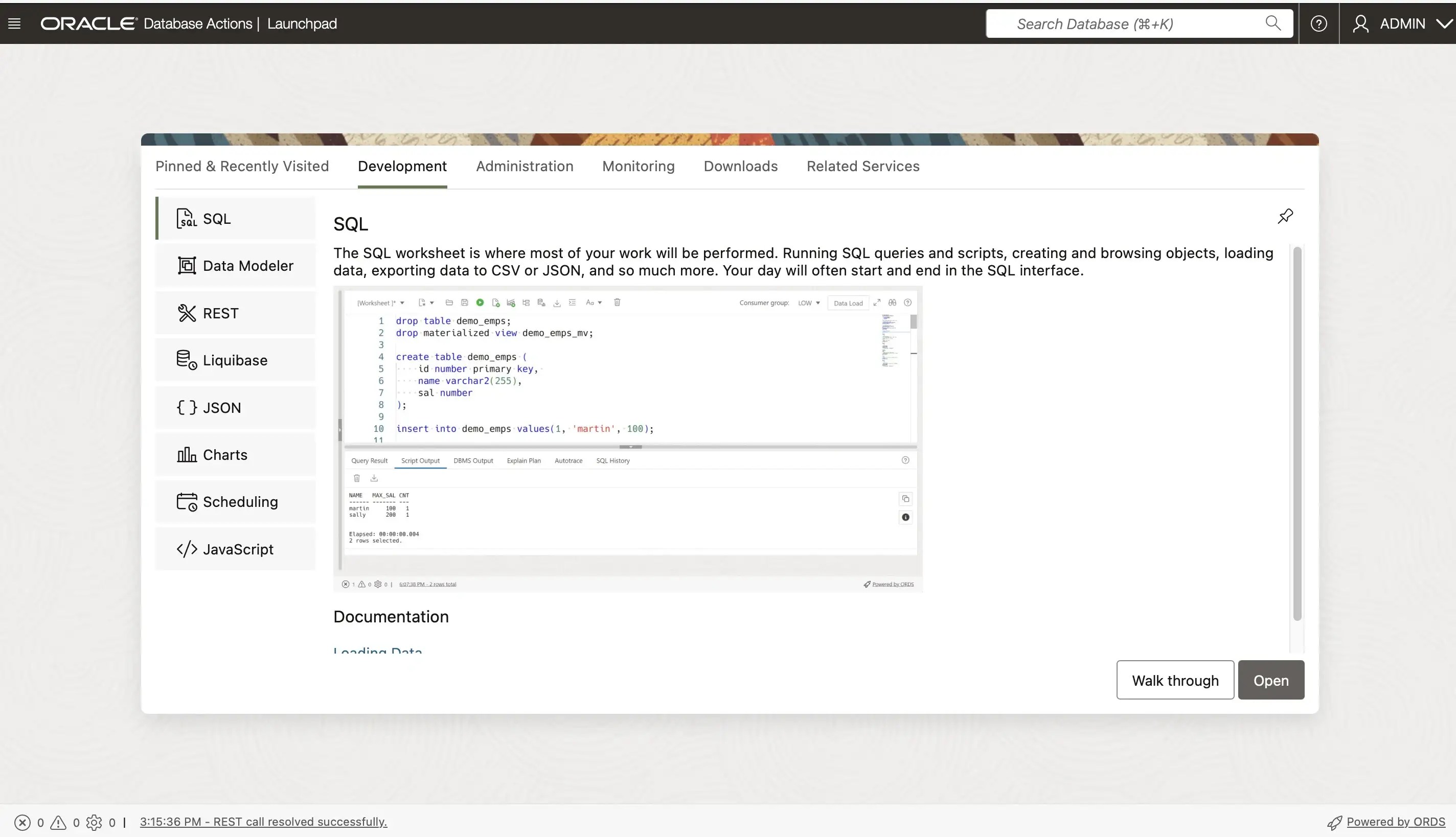
Here we have the Database Actions web page with its well-known hamburger menu.
Connect Autonomous Database with SQLcI
Now I will connect to the database using SQLcl. Since I’m using mTLS (mutual TLS) over TCPS with SSL_SERVER_DN_MATCH=TRUE for database access (all via port 1522), I need to copy the tls_wallet to my host machine.
osmandinc@192 sqlcl % docker cp adb-free:/u01/app/oracle/wallets/tls_wallet /Users/osmandinc/tls_wallet
osmandinc@192 sqlcl % export TNS_ADMIN=/Users/osmandinc/tls_wallet
For my Autonomous Transaction Processing (ATP) instance, I have the following mTLS connection options:
- myatp_medium
- myatp_high
- myatp_low
- myatp_tp
- myatp_tpurgent
osmandinc@192 sqlcl % sql ADMIN/Welcome123456@myatp_high
SQLcl: Release 24.3 Production on Mon Jun 16 18:46:57 2025

Copyright (c) 1982, 2025, Oracle.  All rights reserved.

Last Successful login time: Mon Jun 16 2025 18:46:59 +03:00

Connected to:
Oracle Database 23ai Enterprise Edition Release 23.0.0.0.0 - for Oracle Cloud and Engineered Systems
Version 23.8.0.25.05
As shown in the banner, we have Oracle Cloud and Engineered Systems version 23.8.0.25.05 running in our local environment and it looks great.
Create sample_schemas
First I will download sample schemas from github repo.
osmandinc@192 Downloads % curl -sSL https://github.com/oracle-samples/db-sample-schemas/archive/refs/tags/v23.3.tar.gz | tar xzf -Now I will create the HR sample schema using hr_install.sql through SQLcl. The script will prompt three times:
First, it will ask for the HR schema password. The password must be between 12 and 30 characters long and include at least one uppercase letter, one lowercase letter, and one numeric character.
Second, it will prompt for the default tablespace. The default is DATA for Autonomous Databases, which cannot be changed, just press Enter to accept it.
Third, it will ask whether to overwrite existing objects. Again, press Enter to continue with the default.
osmandinc@192 Downloads %  cd db-sample-schemas-23.3\human_resources\
osmandinc@192 Downloads %  export TNS_ADMIN=/Users/osmandinc/tls_wallet
osmandinc@192 human_resources % /Users/osmandinc/Downloads/sqlcl/bin/sql ADMIN/Welcome123456@myatp_high @hr_install.sql

SQLcl: Release 24.3 Production on Mon Jun 16 22:20:57 2025

Copyright (c) 1982, 2025, Oracle.  All rights reserved.

Last Successful login time: Mon Jun 16 2025 22:20:59 +03:00

Connected to:
Oracle Database 23ai Enterprise Edition Release 23.0.0.0.0 - for Oracle Cloud and Engineered Systems
Version 23.8.0.25.05


Thank you for installing the Oracle Human Resources Sample Schema.
This installation script will automatically exit your database session
at the end of the installation or if any error is encountered.
The entire installation will be logged into the 'hr_install.log' log file.

Enter a password for the user HR: *************


Enter a tablespace for HR [DATA]:
Do you want to overwrite the schema, if it already exists? [YES|no]:

...
Installationverification
___________________________
Verification:

Table             provided    actual
______________ ___________ _________
regions                  5         5
countries               25        25
departments             27        27
locations               23        23
employees              107       107
jobs                    19        19
job_history             10        10

Thankyou!
___________________________________________________________
The installation of the sample schema is now finished.
Please check the installation verification output above.

You will now be disconnected from the database.

Thank you for using Oracle Database!
Now we have the HR sample schema loaded on our Autonomous Database 23ai instance running locally. This provides a great opportunity for testing and learning purposes.
Hope it helps.


 Osman’s DBlog
Leave your comment